
I had a question come in recently about how to deal with social media icons, and share buttons, on a Pressbook. There is one social media platform in particular that was at the root of the question. So I’m cataloging here for authors, editors, network admins, etc. a few different approaches you could take.
Option 1: Use the Theme Options Button
If you have a certain level of permissions on your Pressbook, you should be able to see appearance > theme options when you enter the admin view of your book (i.e. logged in). From there find the Web Options tab. Finally, you can uncheck the box that says Enable Social Media.
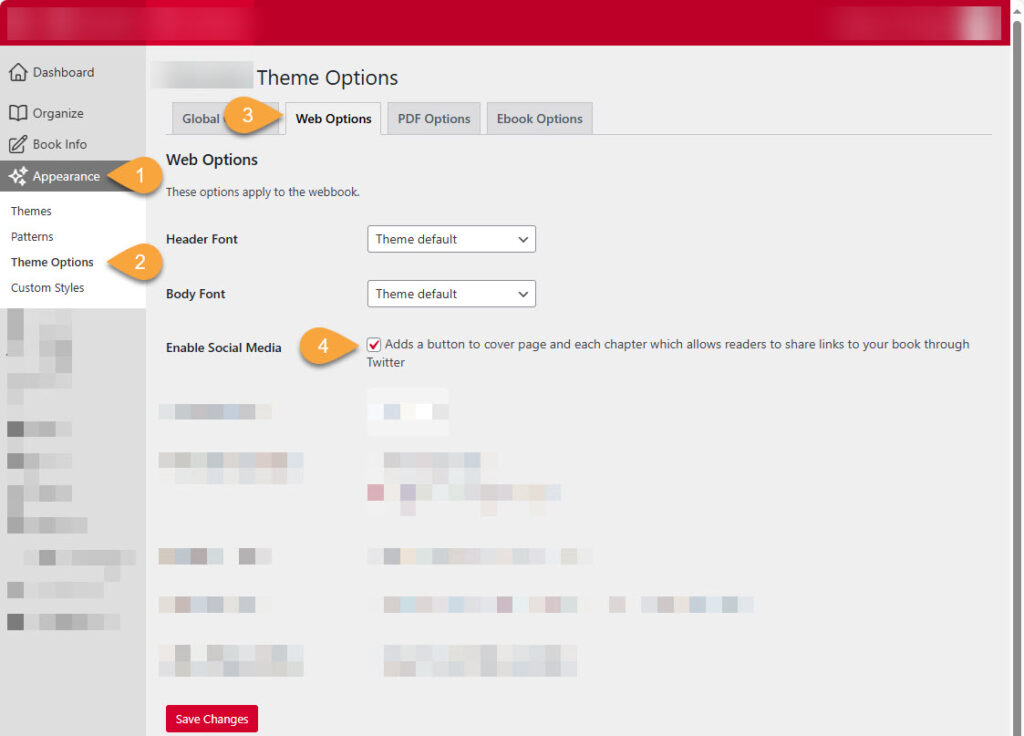
This setting removes all the share buttons from this location on the front page. Some networks have just one social icon, others will have multiples. This checkbox gets rid of them all.
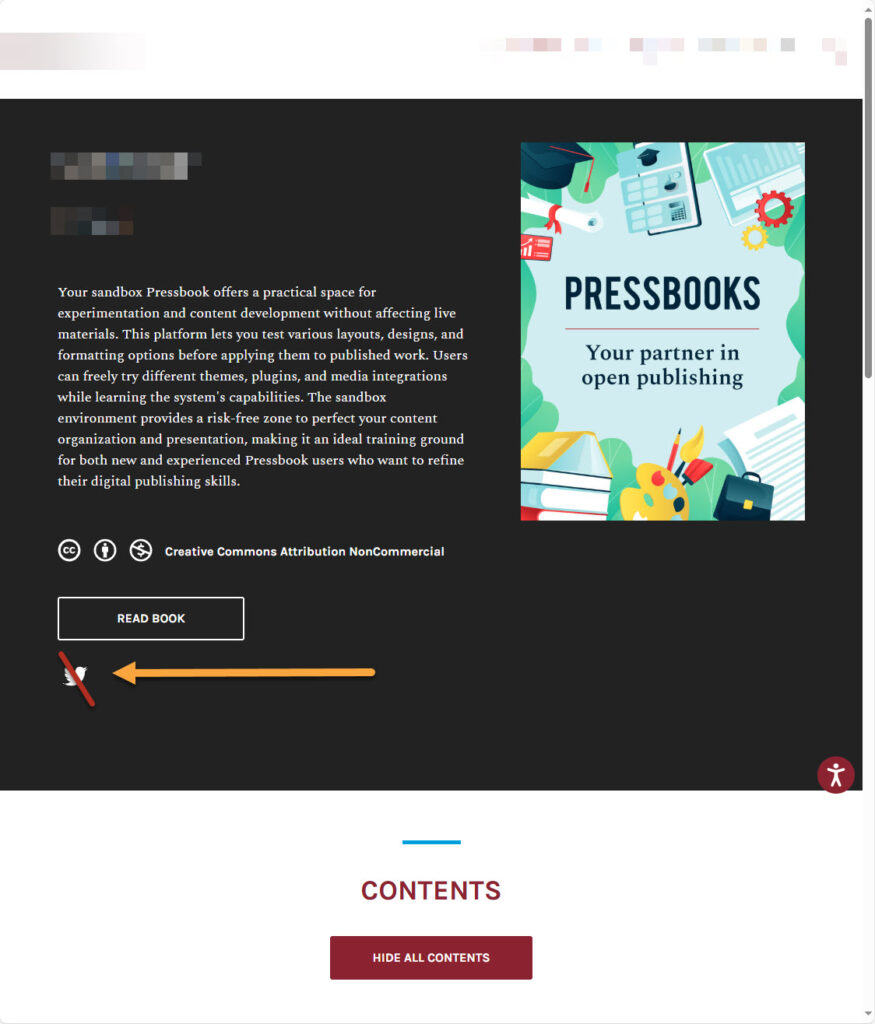
That part is easy. The next is a bit more difficult, requiring us to use a little CSS. Don’t worry though it’s not too bad.
Option 2: Using CSS to remove the social icon in the footer
The network your book is on may have it’s own social links. As an author, I believe you should have some control over what links appear next to your work, and you’re in luck. Even though the network manager manages the footer, you can make some basic changes to the footer for your own work. An example of the social media links I’m talking about are in the lower right if you’re viewing on a computer (rather than mobile).
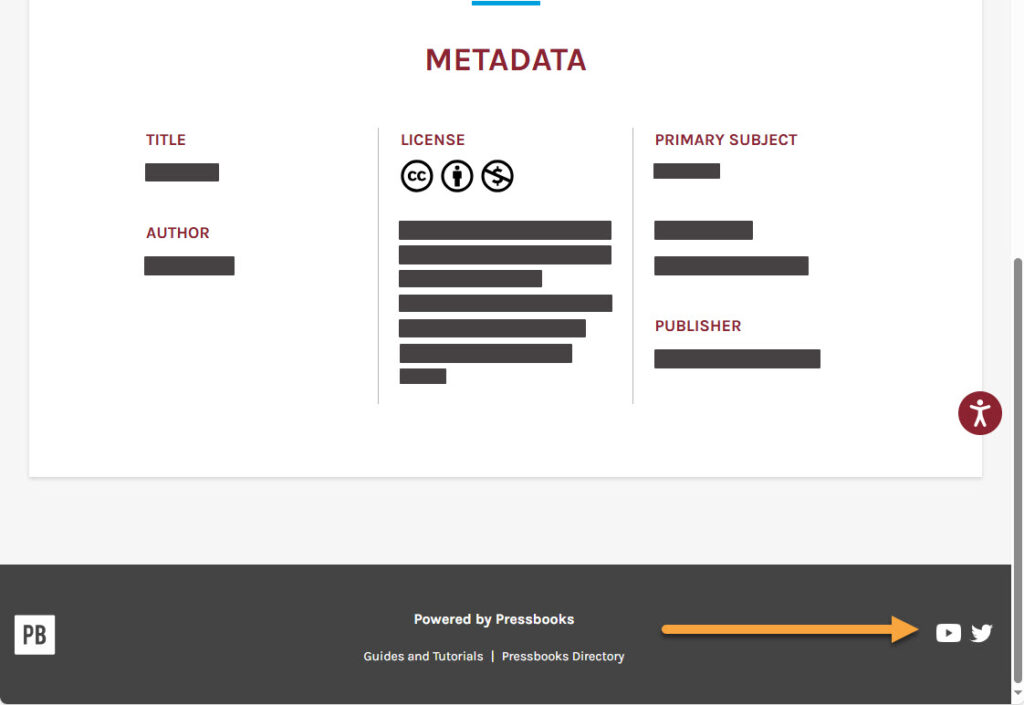
Unlike the Enable Social Media checkbox, we can be more deliberate about the links we remove in the footer in case you want to be specific about which one(s) you remove. Head back to your book’s dashboard, and if you have the permissions you need, you’ll see appearance > custom styles and check that you’re editing styles for web. If you go down on the page you’ll find a section called Your Web Styles. This is where you can customize a lot in Pressbooks. For this example I’ll remove the Twitter icon using CSS. We call out the element and set the display to “none” to make it disappear.
.twitter {
display:none
}
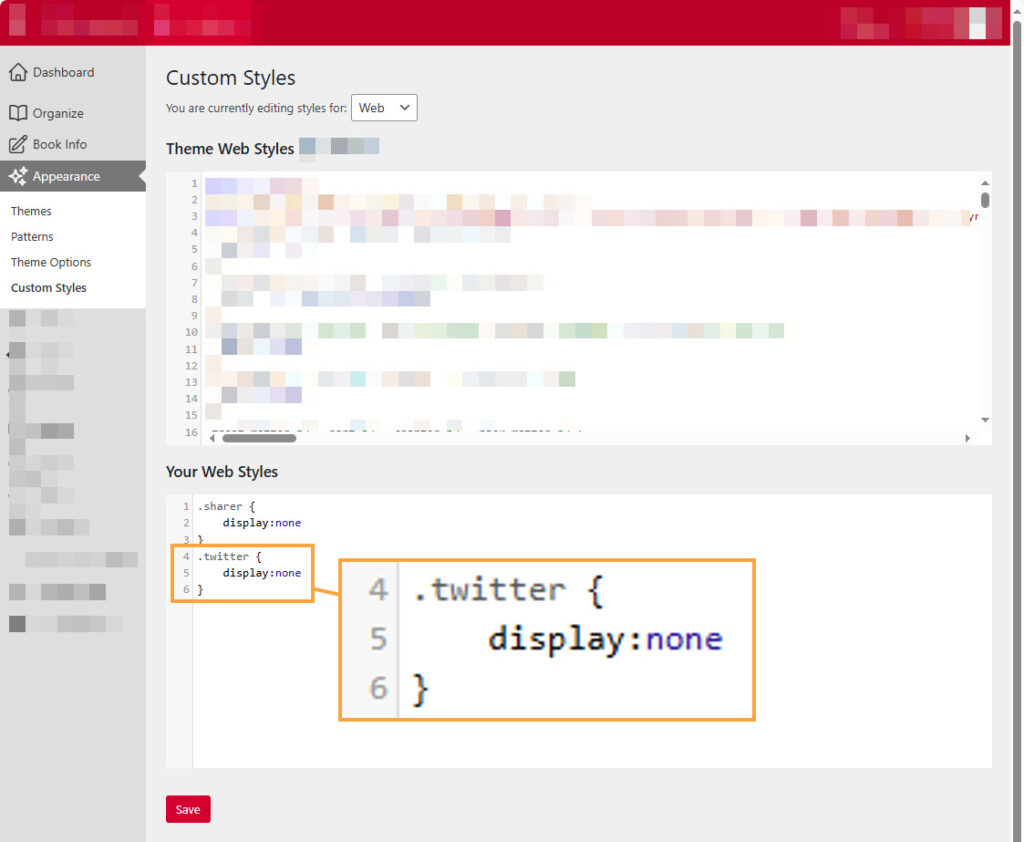
The CSS I have above the example calls our “sharer” which is the CSS element for what that checkbox in option 1 controls. If you want to hide all the footer social media without having to figure out all of their classes (the way we point to the item) you could get rid of all sharing in the footer.
.footer__pressbooks__social {
display:none
}
Update
I mentioned that I played with hiding the top of page share buttons using CSS and that if you have multiple (i.e. many Pressbooks networks include Twitter, LinkedIn, and eMail) this approach would remove all three. You may be able to target them by including an additional identifier in square brackets.
.sharer[data-sharer="twitter"] {
    display: none;
}
This may maintain the LinkedIn and eMail buttons while getting that bird off your book.
Ok, but maybe I do want to share on SOME social media
One example I can show for this case is to place it in your book’s short description. You don’t get the social media icon, because we’ve turned off the Enable Social Media option. Some networks have multiple things here, such as Twitter, LinkedIn, and even email. If we turn off the Enable Social Media we lose all three. And in that part of the homepage for your book, even the CSS option is all or nothing. So what we can do is make our own link. The short description of your book is what appears at the top of the homepage. To find it, go back into the dashboard for your book and look at the menu for Book info. Then scroll down the page until you find About the Book > Short Description. This textbox is not a rich text editor like when you’re writing chapters. However it does allow us to use HTML that will display to your readers.
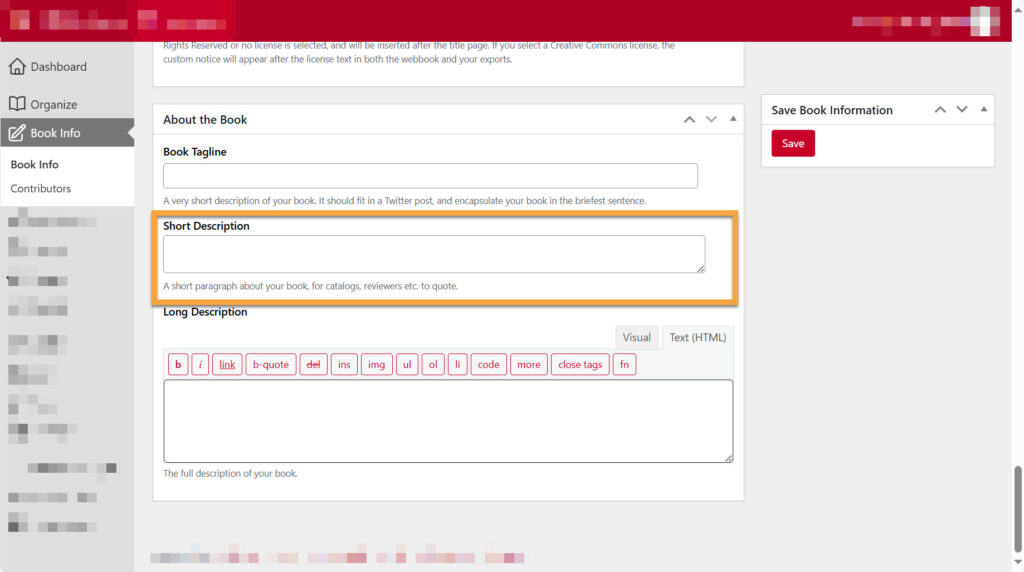
You can drop in your short description as plain text. For the links you have a few options. The approach I used was to make a link that would drop a basic post similarly to the old share buttons we removed. We’ll use LinkedIn as an example.
<a href="https://www.linkedin.com/shareArticle?mini=true&url=[YOUR-URL-HERE]&title=Check out this great book on Pressbooks&summary=Great book on Pressbooks" target="_blank">Share on LinkedIn ➦</a>
What does this HTML do?
- First we have the main link that shares the ‘article’ | https://www.linkedin.com/shareArticle?mini=true
- We follow that with your book’s URL | &url=[YOUR-URL-HERE] | replace the everything there up to and including the square brackets with your book’s URL
- The next is the post stub | &title=Check out this great book on Pressbooks&summary=Great book on Pressbooks”
- We have it open in a new tab | target=”_blank”
- We have the text your readers see | Share on LinkedIn
- Finally, a little icon can be included, in this case a right curved arrow | ➦
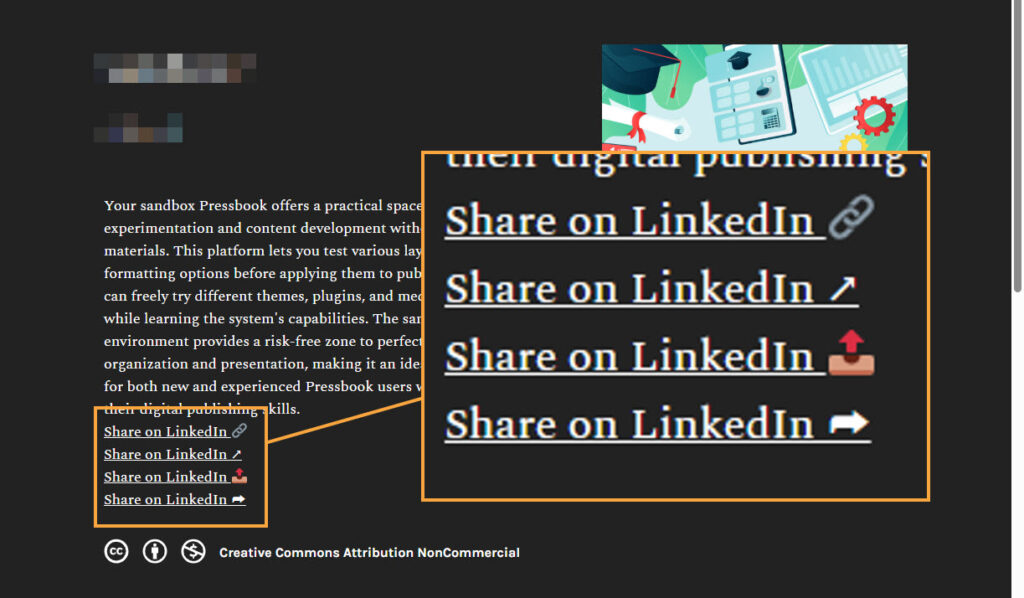
A few options I played with included a chain link, a little arrow, and the outbox icon. You could use any of those too.
- link: 🔗
- up to the right arrow: ↗︎
- outbox: 📤
Enjoy!
Photo by Olia Gozha on Unsplash